

Step 1: Install the Shortcut
Open Taro Wallpaper and go to the bottom tab My → Auto Switch Wallpaper.Choose the shortcut you want to add. In this example, we’ll use Random from My Favorites (Phone) and add it to your Shortcuts list.

Step 2: Set Up Automatic Wallpaper Switching
Open the Shortcuts app, go to Automation, then tap the ”+” button in the top-right corner to create a Personal Automation. Select Time of Day, choose the desired time, and make sure to:- Disable Ask Before Running
- Select Run Immediately

Other shortcuts can be configured in the same way.

【Advanced Tips】
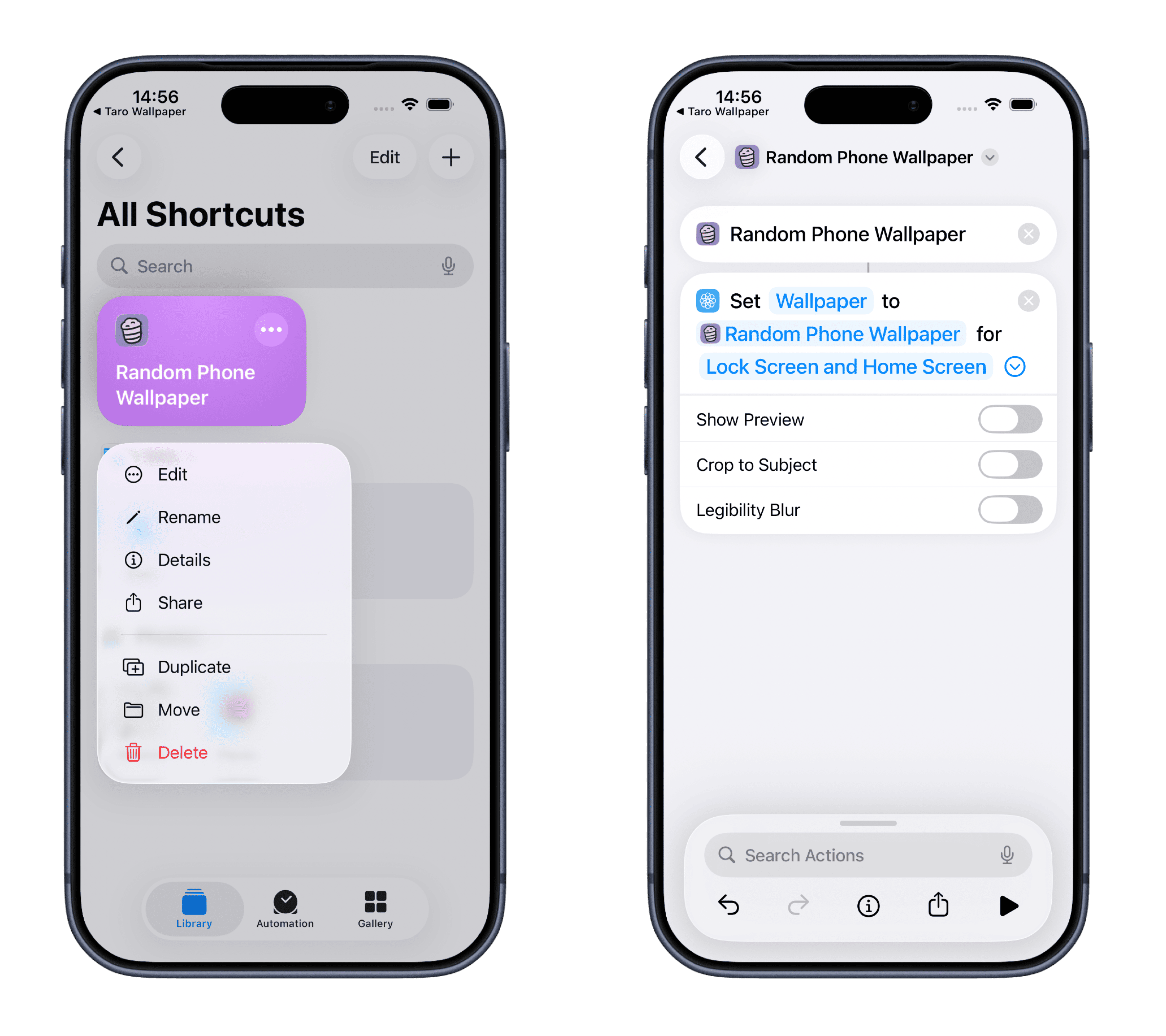
In the Shortcuts app, long-press the shortcut you want to edit.Tap the small arrow next to Lock Screen & Home Screen. Options explained:
Show Preview: When enabled, you’ll see a preview every time the shortcut runs and can manually adjust the image position.
Crop to Subject: Automatically crops the image to highlight the main subject.
Blur for Readability: Adds a blur effect to improve icon and text visibility on the Home Screen.
FAQ
Q: Why doesn’t my wallpaper update after setting the shortcut? A: If multiple wallpapers are configured on your iPhone, you’ll need to manually select which one the shortcut should replace. Follow these steps:- Open the Shortcuts app and long-press the relevant shortcut.
- Tap Edit.
- Select Wallpaper 3 (the number may vary).
- In the popup window, choose the wallpaper currently in use and tap Done.
More Automation Ideas
- Add the wallpaper shortcut to a Home Screen widget for quick manual changes.
- Create separate shortcuts for Lock Screen and Home Screen wallpapers.
- After downloading a wallpaper, use widgets to decide whether to set it as Lock Screen or Home Screen.
- …