> ## Documentation Index
> Fetch the complete documentation index at: https://docs.tarowallpaper.com/llms.txt
> Use this file to discover all available pages before exploring further.
# iOS Shortcuts Guide: Automatically Change Wallpaper
> You can automatically change your current device wallpaper using iOS Shortcuts, without opening Taro Wallpaper or going through complicated settings.
***Note: iOS 16 or later is required.***
## Step 1: Install the Shortcut
Open **Taro Wallpaper** and go to the bottom tab **My** → **Auto Switch Wallpaper**.\
Choose the shortcut you want to add. In this example, we’ll use **Random from My Favorites (Phone)** and add it to your Shortcuts list.
 ## Step 2: Set Up Automatic Wallpaper Switching
Open the **Shortcuts** app, go to **Automation**, then tap the **"+"** button in the top-right corner to create a Personal Automation.
Select **Time of Day**, choose the desired time, and make sure to:
* Disable **Ask Before Running**
* Select **Run Immediately**
Tap **Next** to continue.
## Step 2: Set Up Automatic Wallpaper Switching
Open the **Shortcuts** app, go to **Automation**, then tap the **"+"** button in the top-right corner to create a Personal Automation.
Select **Time of Day**, choose the desired time, and make sure to:
* Disable **Ask Before Running**
* Select **Run Immediately**
Tap **Next** to continue.
 From **My Shortcuts**, select **Random from My Favorites (Phone)**.\
Other shortcuts can be configured in the same way.
From **My Shortcuts**, select **Random from My Favorites (Phone)**.\
Other shortcuts can be configured in the same way.
 ## 【Advanced Tips】
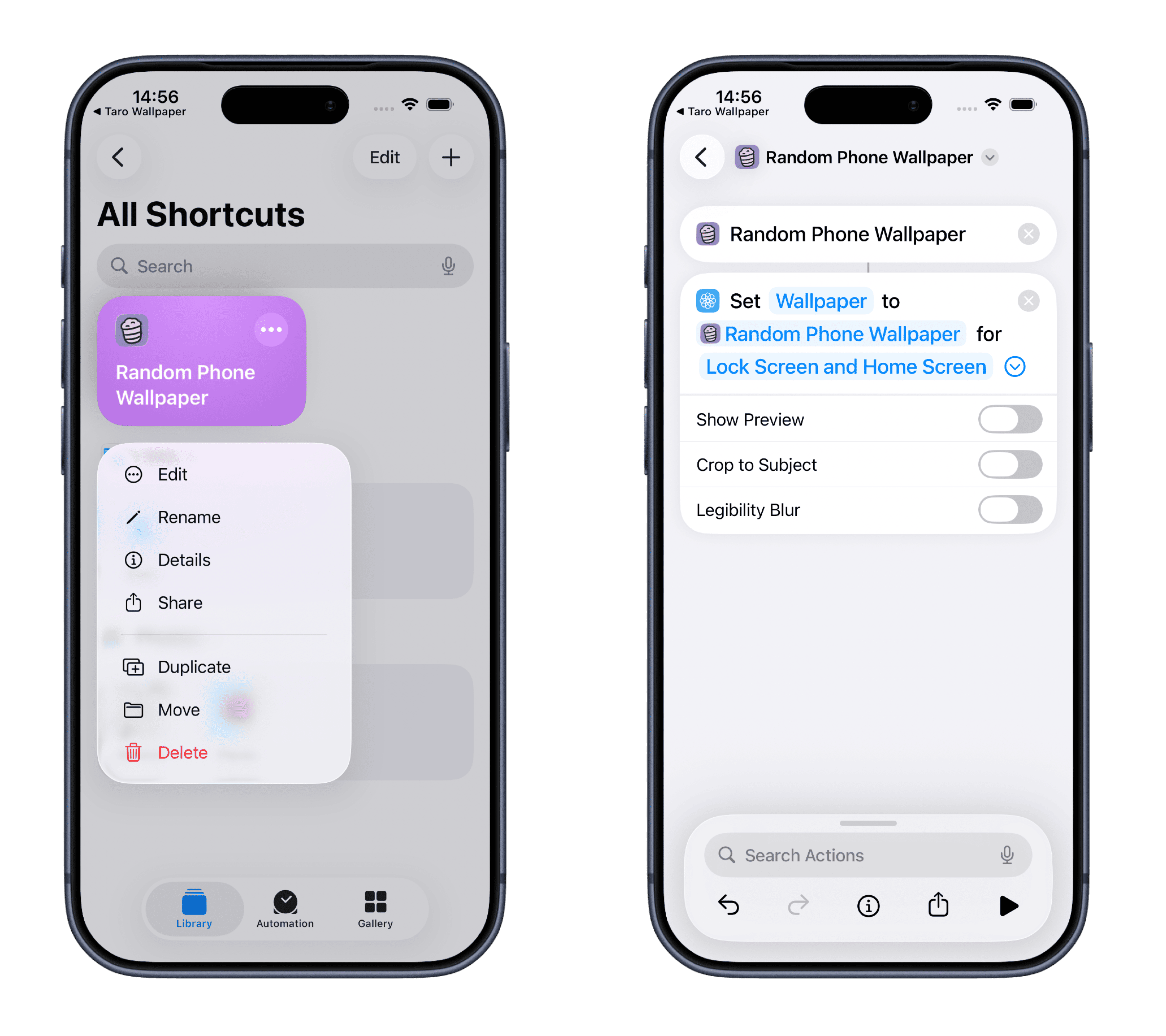
In the Shortcuts app, long-press the shortcut you want to edit.\
Tap the small arrow next to **Lock Screen & Home Screen**.
**Options explained:**
> Show Preview: When enabled, you'll see a preview every time the shortcut runs and can manually adjust the image position.\
> Crop to Subject: Automatically crops the image to highlight the main subject.\
> Blur for Readability: Adds a blur effect to improve icon and text visibility on the Home Screen.
## 【Advanced Tips】
In the Shortcuts app, long-press the shortcut you want to edit.\
Tap the small arrow next to **Lock Screen & Home Screen**.
**Options explained:**
> Show Preview: When enabled, you'll see a preview every time the shortcut runs and can manually adjust the image position.\
> Crop to Subject: Automatically crops the image to highlight the main subject.\
> Blur for Readability: Adds a blur effect to improve icon and text visibility on the Home Screen.
 ## FAQ
**Q: Why doesn’t my wallpaper update after setting the shortcut?**
**A:** If multiple wallpapers are configured on your iPhone, you’ll need to manually select which one the shortcut should replace. Follow these steps:
1. Open the Shortcuts app and long-press the relevant shortcut.
2. Tap **Edit**.
3. Select **Wallpaper 3** (the number may vary).
4. In the popup window, choose the wallpaper currently in use and tap **Done**.
The shortcut will now update your active wallpaper without affecting others.
## More Automation Ideas
* Add the wallpaper shortcut to a Home Screen widget for quick manual changes.
* Create separate shortcuts for Lock Screen and Home Screen wallpapers.
* After downloading a wallpaper, use widgets to decide whether to set it as Lock Screen or Home Screen.
* ...
## FAQ
**Q: Why doesn’t my wallpaper update after setting the shortcut?**
**A:** If multiple wallpapers are configured on your iPhone, you’ll need to manually select which one the shortcut should replace. Follow these steps:
1. Open the Shortcuts app and long-press the relevant shortcut.
2. Tap **Edit**.
3. Select **Wallpaper 3** (the number may vary).
4. In the popup window, choose the wallpaper currently in use and tap **Done**.
The shortcut will now update your active wallpaper without affecting others.
## More Automation Ideas
* Add the wallpaper shortcut to a Home Screen widget for quick manual changes.
* Create separate shortcuts for Lock Screen and Home Screen wallpapers.
* After downloading a wallpaper, use widgets to decide whether to set it as Lock Screen or Home Screen.
* ...